Tool 21 · Spotify visualizer · Free · No login
Spotify visualizer.
Spotify plays; this page draws it, live and full screen. Share the tab Spotify plays in, or let the microphone listen, and nineteen styles move with the kick, the bass and the drops. Not made by or connected to Spotify.
01 Listen to
Play Spotify out loud and let the microphone listen, or drop a song file anywhere on this page. Nothing is recorded or uploaded.
Pick what to listen to above: this is a still until the sound starts
02 Style
03 On screen
Want it as a video? This page shows, it does not record. The music visualizer renders the same styles from a song file or a searched song as a 1080p MP4, and the Spotify Canvas maker makes the 8 second loop for your own release.
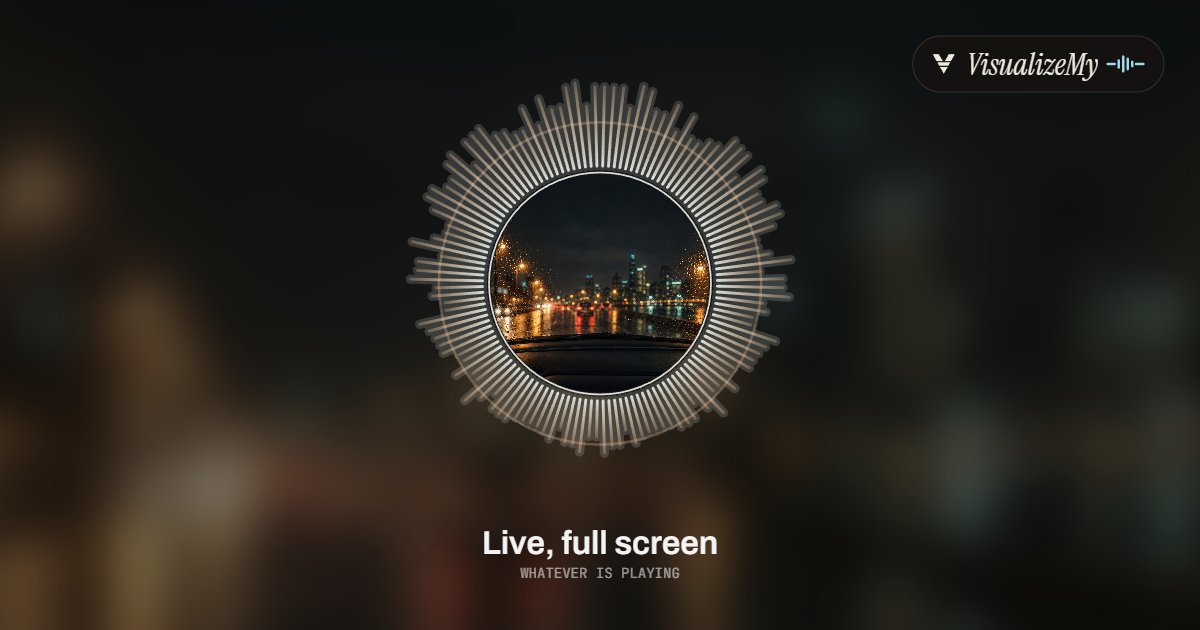
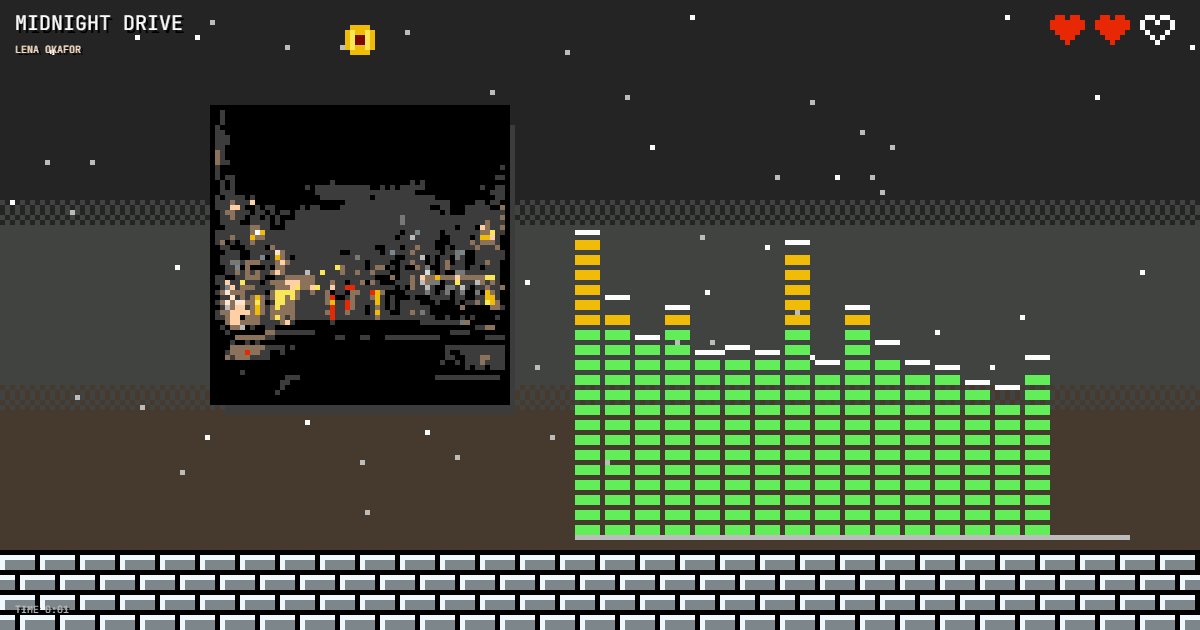
Three of the nineteen styles


How to use it with Spotify
Most people who look for a Spotify visualizer want the same thing: the song playing in Spotify, and something on the big screen moving with it. Spotify itself has no visualizer, and the web visualizers that used to log in to Spotify drew from the analysis Spotify published for each track, a list of beats, bars and sections worked out in advance. Spotify stopped giving that to new apps on November 27, 2024. This page does not ask Spotify for anything. It listens to the sound, the way a club light rig does, so it follows the actual song, including a live version, a remix or a DJ set that no database has analyzed.
Which way to listen depends on the device. On a computer in Chrome or Edge, sharing is the clean route: the tab where open.spotify.com plays, or on Windows the whole screen with system audio for the desktop app, so the page gets exactly what you hear, at full quality, with no room in it. The microphone works everywhere, phones included, and is the only route in Firefox and Safari, which do not share sound; it hears the speakers and the room, so put the phone near the speaker and turn it up. Either way the reading is the one our exported videos use, 64 frequency bands, the kick from the low end, the loudness and the drops, 30 times a second; the one difference is that live it can only look back, so it measures each moment against the last ten seconds instead of against the whole song.
- Play the song in Spotify. On a computer, open it at open.spotify.com in a Chrome or Edge tab, or keep the desktop app playing on Windows.
- Press Share a tab or screen and pick the Spotify tab with "Also share tab audio" on, or Entire screen with "Also share system audio" on Windows. On a phone, or in Firefox or Safari, press Use the microphone and play it out loud.
- Pick a style, type the song title if you want it on screen, and press Full screen or F. The arrow keys change the style.
- To keep it, make the video: the music visualizer renders the same style from the song file or a searched preview as a 1080p MP4.
Related
- Music visualizerThe same nineteen styles rendered from a song as a 1080p MP4.
- Spotify Canvas makerThe 3 to 8 second vertical loop that plays behind your own track.
- Audio visualizerThe classic bars and the halo, as a video.
- What is a music visualizerLive effects versus rendered videos, and how either is made.
- Best music visualizersFree, online and desktop tools compared.
Questions
Does it connect to my Spotify account?+
No, and it does not need to. Spotify does not give a website the sound of what you are playing, and since November 27, 2024 it no longer gives new apps the per-track audio analysis (beats, bars, sections) that older Spotify visualizers were built on. So this page listens to the sound itself: a tab or screen you share, or the microphone. There is no login, and it works the same with Apple Music, YouTube, SoundCloud or a DJ set.
How do I use it with the Spotify desktop app?+
On Windows, in Chrome or Edge: press Share a tab or screen, pick Entire screen and turn on "Also share system audio". Everything the computer plays then drives the picture. On a Mac, recent Chrome on macOS 14.2 or later can share the screen's sound too; if the switch is not offered, open the song at open.spotify.com in a Chrome tab and share that tab with "Also share tab audio" on.
Does it work on a phone or a tablet?+
With the microphone, yes. Phone browsers cannot share another app's sound with a web page, so press Use the microphone and play Spotify out loud, from the same phone or from a speaker nearby. The microphone also hears the room, so voices and clapping move it too; a shared tab is the clean signal.
Is anything recorded or uploaded?+
No. The browser hands the page the sound, the page measures it 30 times a second (64 frequency bands, the kick, the loudness) and draws the frame from those numbers. Nothing is stored and nothing is sent. The browser shows its sharing or microphone indicator while the page listens; press Stop, or stop sharing, and it ends.
Why does it look calm for the first few seconds?+
It cannot know in advance how loud the song will get, so it measures every level against the last ten seconds or so. Right after you start it is still learning the level, and the first drop of a song stands out most once it has heard the quieter part before it. A song file rendered in the music visualizer is analyzed whole, which is why exported videos react from the first frame.
Can I keep it on a TV or a projector?+
Yes. Press Full screen (or F) on the computer connected to the screen; the controls and the cursor fade after a few seconds and the page asks the device to keep the display awake while it listens. ← and → switch between the nineteen styles without leaving full screen.
Can I save it as a video?+
Not from this page: it draws live and records nothing. To get a file, open the music visualizer, drop the song (or search it by name for the 30 second preview) and export the same style as a 1080p MP4, free, the whole song up to ten minutes.
Is this made by Spotify?+
No. VisualizeMy is independent and not affiliated with Spotify. Spotify is a trademark of Spotify AB; the name is used here only to say what the page works with.