Tool 12 · MP3 tag editor · Free · No signup
MP3 tag editor.
Drop an MP3 and fix what it says: title, artist, album, year, track number, genre, comment and the cover art. Download the same song with the new tags. The audio is not touched, and nothing uploads.
01 MP3
The file is read on your device and never uploads.
02 Tags
03 Save
The audio is copied byte for byte; only the tag at the front of the file is rewritten, as ID3v2.3, the version every player, phone and car stereo reads. Same sound, same length, new labels.
The cover, where it shows
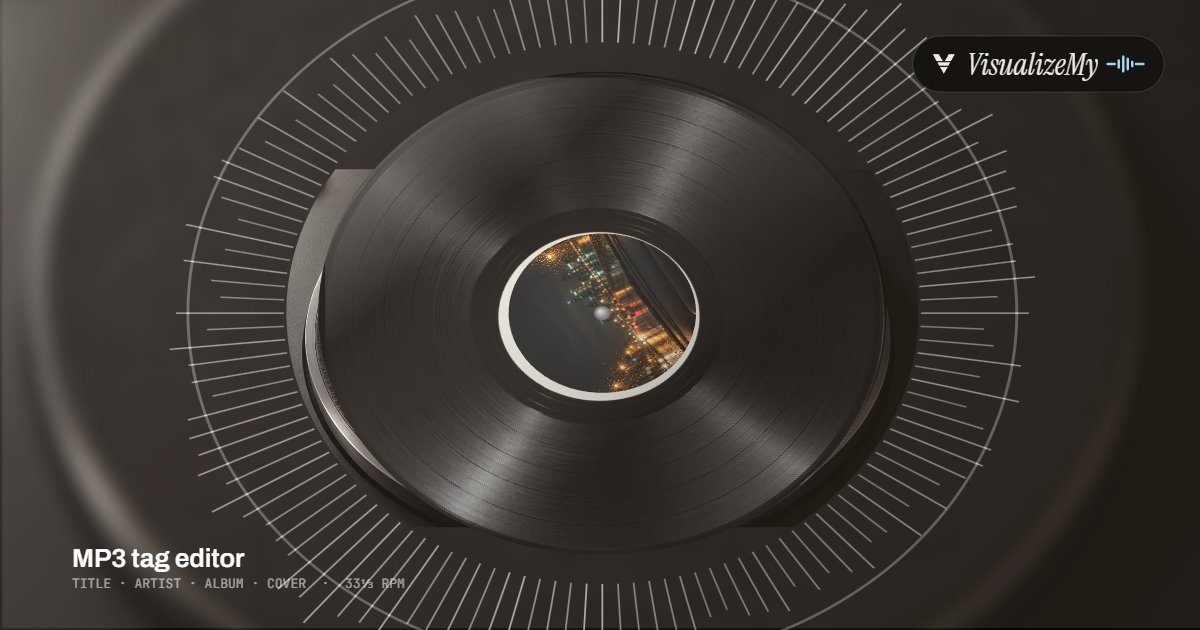
The cover you save in the file is the one our music visualizer and MP3 to MP4 pages pick up when you drop the song there: above, it is the label of the record in the Vinyl style. Tag the file once and every tool, player and phone shows the same picture.
How to edit the tags of an MP3
Every MP3 player reads the same thing: an ID3 tag, a small block of labelled fields at the start of the file (TIT2 is the title, TPE1 the artist, APIC the picture). Editing a tag means rewriting that block, so there is no reason to re-encode the song or send it to a server, and this page does neither. It reads whatever tag the file has, shows the eight fields people actually change and the cover, keeps everything else it finds, and writes a fresh tag in front of the original audio.
- Drop the MP3 on the page or click to choose it. The tags it already has fill the boxes, and the cover shows on the right.
- Change the title, artist, album, album artist, year, track number, genre or comment. Clear a box to remove that tag.
- Set the cover: choose an image (it is squared for you), make a plain one from the title and artist, or remove it.
- Press Download the tagged MP3. Tick the box first if you want the file named Artist - Title.
- Replace the old file with the new one, and re-add it to your music library so the player reads the new tags.
Related
- MP3 to MP4The tagged song and its cover as a 1080p video for YouTube or Instagram.
- Music visualizerNineteen styles built around the cover in the file.
- Album cover makerA 3000 by 3000 cover from the title and artist, more layouts than Make one.
- BPM and key finderThe tempo and key of the same file, for the BPM tag or a DJ set.
- Waveform imageThe song as a still sound wave, PNG or SVG.
- All guidesHow-tos and comparisons from the people who build the tools.
Questions
Does editing the tags change the sound?+
No. An MP3 keeps its tags in a block at the front of the file, separate from the audio. This editor rewrites only that block and copies the audio after it byte for byte, so the file sounds exactly the same, is the same length and plays everywhere it played before. Nothing is decoded or re-encoded.
Why does my phone or car still show the old title?+
Most players keep their own library and read a file's tags once, when the file is first added. After you replace the file, the old entry can linger: remove the song from the library and add the new file again, or in iTunes and Apple Music use Get Info on the song once. Car stereos often read only on a new USB or a new sync.
What size should the cover art be?+
Square. Streaming stores ask for 3000 by 3000 pixels, but that is for the upload to the store, not for the file on your device. Inside an MP3, 600 to 1400 pixels looks sharp on any screen and keeps old car stereos and MP3 players happy; some of them refuse covers over about 500 KB or saved as progressive JPEGs. A square JPEG or PNG you choose is kept as it is; anything else is cropped to the centre square and saved as a 1400 pixel JPEG.
What happens to tags this page does not show?+
They are kept. Lyrics, composer, BPM, sort names, ReplayGain values, extra pictures and app data stay in the file, and the page lists what it found. A field you clear here is removed from the file. The only things dropped are frames that are compressed or encrypted inside the tag, which almost no file has.
Which tag version does it write?+
ID3v2.3, the version Windows Explorer, macOS, iTunes, Android, every car stereo and every DJ program read. It reads v2.2, v2.3 and v2.4 and converts as it goes. If the file also had an old ID3v1 tag at the end, that is rewritten with the new values too (it only holds 30 characters a field and no accents, which is why v2 matters).
Can I tag a whole album?+
One file at a time, but quickly. Tag the first track, tick Keep album, year, genre and cover for the next file, and drop the next MP3: its own title, artist and track number load, and the album, album artist, year, genre and cover stay as you set them. Change the track number, save, drop the next.
Can it edit M4A, FLAC or WAV tags?+
No, MP3 only. M4A and AAC files keep their tags in a different structure, FLAC uses Vorbis comments and WAV barely has tags at all. If you only need the song as a video with its cover, our MP3 to MP4 page reads the embedded cover from MP3 and M4A both.
Is my file uploaded?+
No. The MP3 is read and rewritten in your browser, and the download is made on your device. Nothing about the file, its tags or its cover is sent anywhere; the page only counts that a save happened, with no file name or tag in it.