Tool 29 · Audio equalizer · Free · No signup
Audio equalizer.
Drop a song or a recording and shape it with a ten-band equalizer: drag the dots on the curve, or start from Bass, Treble, Vocals or Voice. Hear it change as it plays, switch to the original at the same moment, then download one MP3 or WAV. It all runs in your browser.
01 Audio
MP3, WAV, M4A, AAC, FLAC, OGG or Opus. The file is read on your device and never uploads.
02 Equalizer
03 Download
About 1 KB. 192 kbps is transparent for most music; 320 if it is going back into an editor. One file: audio-eq.mp3.
Equalized, then a video
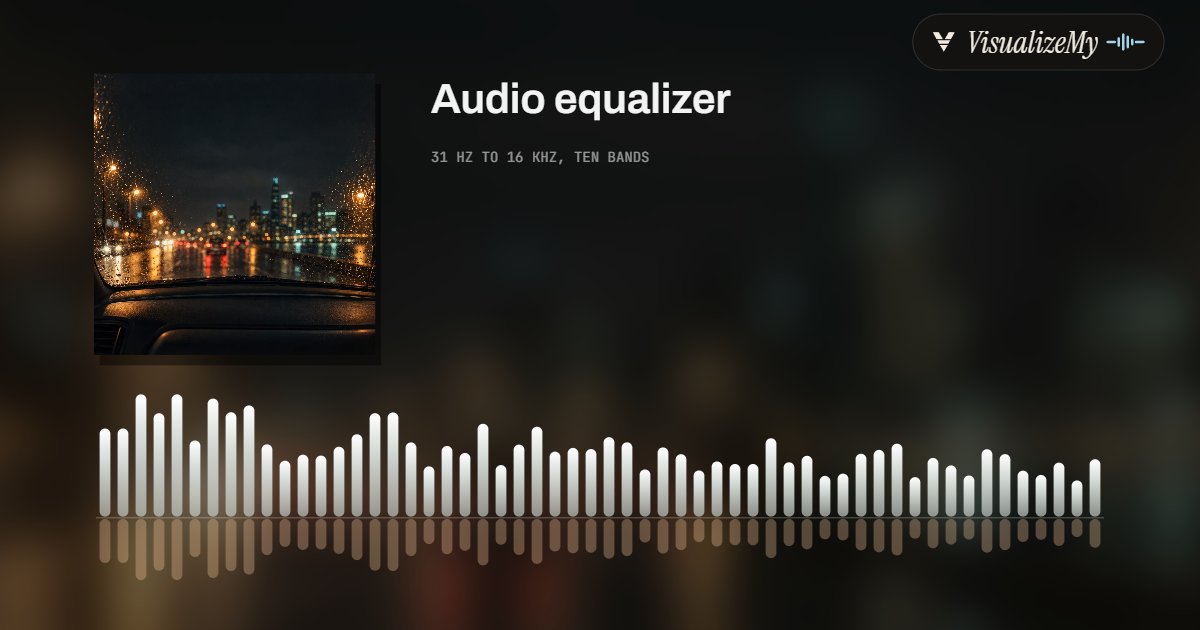
The bars an equalizer is usually pictured with are a spectrum, a measurement of the sound rather than a control over it. Above, a frame in the Bars style of our audio visualizer, which draws those bars from your song frame by frame. Drop the equalized file on it, or on MP3 to MP4 for a still cover with the sound.
How to equalize an audio file
A graphic equalizer is a row of filters, each raising or lowering a band of frequencies and leaving the rest alone. Ten bands an octave apart, each double the last, cover the range people hear in the steps the ear hears pitch in. Here each band is a bell-shaped peaking filter one octave wide, the ten are applied one after another, and a limiter after them keeps a boosted peak from clipping. The curve is the product of all ten, calculated from the filters themselves rather than drawn through the dots. The file is decoded, filtered and encoded on your device, and nothing is uploaded.
- Drop the file anywhere on the page, or click to choose it. Or try the sample track.
- Press Play. The faint shape behind the curve is the spectrum of what is playing.
- Drag a dot up to raise that band or down to cut it, or pick a preset and adjust from there. Double-click a dot to put it back to zero; with the curve focused, the arrow keys pick a band and move it.
- Switch between EQ and Original to hear the difference at the same spot.
- Pick MP3 or WAV and press Download. The file is named after yours, with -eq on the end.
Related
- What an audio equalizer isGraphic and parametric EQ, the one in Spotify, and what visualizer bars show.
- Bass boosterJust the low end, up to 18 dB, clean or distorted.
- Volume boosterThe whole file louder, or matched to a loudness in LUFS.
- Audio visualizerThe spectrum as a 1080p video of your song.
- MP3 to MP4The equalized file with a cover as a video.
- Audio trimmerCut the result down to the part you want.
- Sound testWhat your speakers or headphones can play, from 20 Hz to 20 kHz.
Questions
Which band does what?+
From left to right: 31 and 62 Hz are the sub-bass and the thump of a kick, felt more than heard and missing on phone and laptop speakers. 125 and 250 Hz are the body of bass, guitar and voice, and where a mix turns muddy or boomy. 500 Hz and 1 kHz are the middle of most instruments; too much sounds boxy or honky. 2 and 4 kHz are presence, where the ear is most sensitive: a little makes a voice clear, a lot makes it harsh. 8 and 16 kHz are cymbals, breath and the sizzle of an S. Play the song, then drag one dot up as far as it goes and sweep it left and right: the part of the sound that jumps out is that band.
Which preset should I use?+
Bass lifts the bottom three octaves; Treble lifts the top three. Smile raises both ends and dips the middle, the V-shaped curve that sounds fuller at low volume because the ear hears less of the extremes when it is quiet. Vocals cuts the low end a little and lifts 500 Hz to 4 kHz, which brings a singer forward. Voice is for speech, a podcast, a lecture, a phone recording: it cuts 31 and 62 Hz hard, where rumble, wind and handling noise sit, and adds presence for clarity. Every preset is a starting point; drag any dot from there.
Should I boost or cut?+
Cutting usually sounds more natural. If a song sounds thin, try lowering 500 Hz to 2 kHz before raising the bass; if a voice is muddy, cut 250 Hz before boosting 4 kHz. Boosts also need room above the loudest peak, and a finished song has almost none, so a limiter catches the peaks here and keeps them under −1 dB. That keeps the file from clipping, but a big boost on a loud master makes the limiter work hard and the hits lose some punch. Switch to Original and back at the same moment to hear whether a change really helps.
How exact is it?+
Each band is a peaking filter one octave wide (Q 1.41), centered on the standard ten-band frequencies, adjustable in steps of 1 dB from −12 to +12. The curve on screen is calculated from the same coefficients the download is filtered with, so where two raised bands overlap the curve shows their sum. The preview plays through the browser's own peaking filters, which use the same formula, and a limiter set like the download's, so what you hear is what you save.
Will this change the sound of my whole computer or phone?+
No. It changes an audio file, so the EQ travels with it to wherever it is played. To change everything a device plays, use the equalizer in the player or the system: Spotify has one under Settings, Playback, Equalizer; the Apple Music app has one under Settings on iPhone and in the Window menu on a Mac; Windows needs a system-wide EQ such as the free Equalizer APO.
Which formats does it take, and how long can a file be?+
Anything your browser can play: MP3, WAV, M4A and AAC, FLAC, OGG Vorbis and Opus in current Chrome, Edge and Firefox. The download is an MP3 at 128, 192 or 320 kbps, or a 16-bit, 44.1 kHz WAV, the same length as the original. We set no length limit; the whole file is held uncompressed while you work, about 20 MB a minute in stereo, so an hour is fine on a laptop.
What is the difference between this and the bars in a visualizer?+
An equalizer changes the sound; the bars in a music visualizer only measure it. The faint shape that moves behind the curve here is that measurement, a spectrum of what is playing, bass on the left and treble on the right, so you can see a boost land. The guide on equalizers goes through both, and the audio visualizer turns the spectrum into a video of your song.
Is my audio uploaded?+
No. The file is decoded, filtered and encoded on your device, and the download is made there. The page only counts that a file was saved, with the format and the preset, never a name or the audio.