Images · Tool 91 · Images · Free · No upload
PNG to JPG.
Drop PNG images and get much smaller JPGs: set the quality and the colour that fills transparent parts. Many at once, nothing uploaded, free.
01 PNG images
Drop PNG images anywhere here
As many as you like. They stay on this device.
02 JPG settings
JPG has no transparency: see-through parts get this colour. 92 is hard to tell from the original; 80 makes a noticeably smaller file.
03 Next
Made with this tool
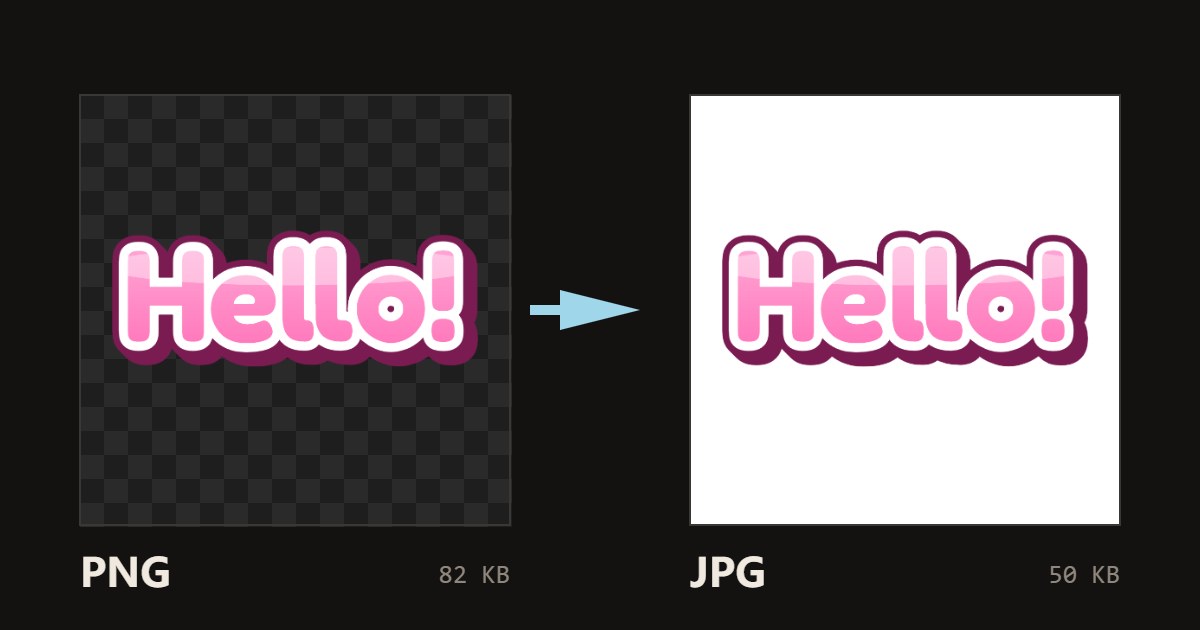
How to convert PNG to JPG
PNG and JPG are built for different pictures. PNG is lossless and keeps transparency, ideal for screenshots, logos and anything with text. JPG is lossy and made for photos, where it gives a far smaller file with no visible difference at good quality.
So converting PNG to JPG is worth it for photos and pictures with soft colour. The tool shows the size before and after for every file, which makes it easy to see when it helps and when to keep the PNG.
- Drop your PNG files on the page or press Choose images.
- Set the JPG quality and the background colour for transparent parts.
- Press Download next to a file, or Download all for a ZIP.
Related
Questions
Why convert PNG to JPG?+
To make photos smaller. PNG stores every pixel exactly, which suits screenshots and graphics but makes photos heavy: a phone photo saved as PNG is often several times the size of the same photo as JPG. Converting gets it under an email or upload limit and loads faster on a website.
When should I keep the PNG?+
When the picture has sharp text, thin lines or flat colour, like a screenshot, a chart or a logo. JPG compression smudges hard edges, and it does not save much on flat graphics anyway. Also keep PNG when you need transparency.
What happens to the transparent background?+
JPG has no transparency, so see-through parts are filled with the colour you pick: white by default, black or any colour. A logo on a transparent PNG becomes a logo on a white rectangle; choose the colour of the page it will sit on.
What quality should I choose?+
92 looks the same as the original on almost any photo. For the smallest file that still looks good, try 80. Each file shows its new size next to the old one, so you can see what you saved.
Are my images uploaded?+
No. The browser reads each picture and writes the new file on your device; nothing is sent to a server, which is also why it is fast and works on large batches. Close the tab and the files are gone from the page.
Can I convert many images at once?+
Yes. Drop or pick as many as you like; each is converted as it arrives and gets its own Download button, and Download all saves one ZIP. Very large photos, over about 16.7 megapixels, are scaled down to that size on iPhones because Safari will not draw anything bigger; the list says when that happened.
Is the photo data kept?+
The new file has no EXIF data: no camera model, date taken or GPS location. That is how browsers write images, and it is often what you want before posting a photo. The orientation is applied first, so a photo taken sideways on a phone comes out the right way up. If you need the metadata kept, use a desktop app such as Photoshop or GIMP.