Effects · Tool 32 · Subscribe button animation · Free · No signup
Subscribe button animation.
Your channel name, your avatar and your colour on a like, subscribe and bell animation: the cursor clicks Like, the button turns to Subscribed, the bell rings. Download it as a 1080p MP4 on green screen and key it out in any editor. Free, no watermark.
1080p, 30 fps, on pure green (#00FF00). Free for any use, no watermark, no sign-up.
On green, then keyed
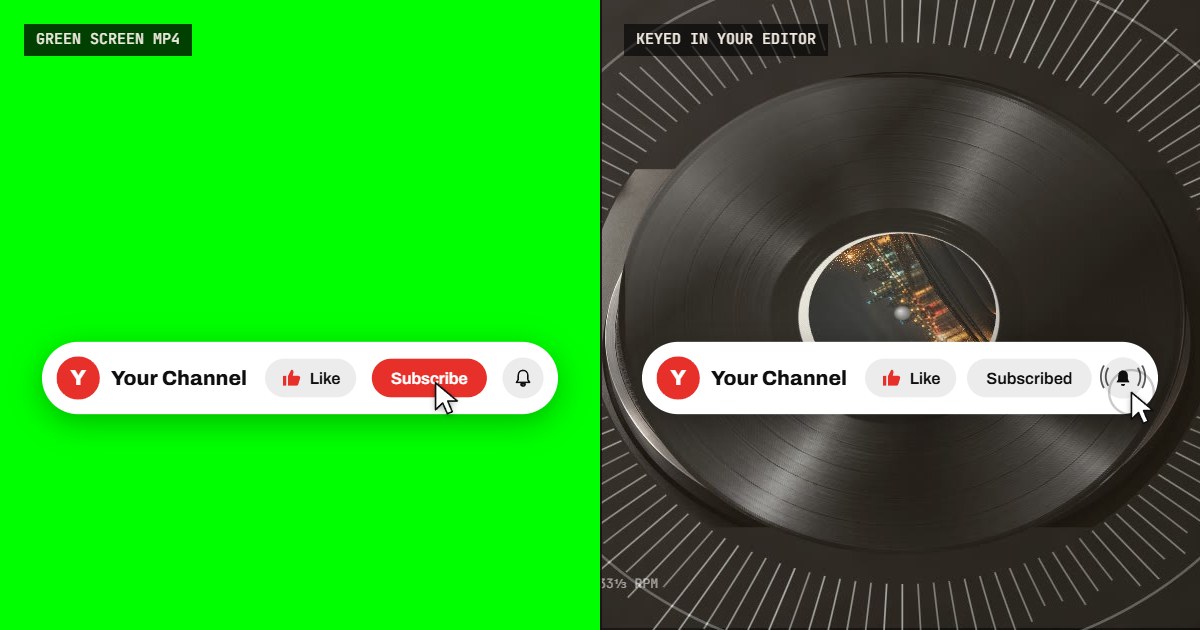
Left, a frame of the file as it downloads, on pure green; right, the same animation a second later, keyed over a frame from our music visualizer, after the bell has rung. Every pixel of it is drawn by this page in your browser, so the preview above is exactly the file you get.
How to add a subscribe button to a YouTube video
A subscribe reminder works when it is short, low in the frame and comes after you have given the viewer something. The animation does the asking in about four seconds: the card pops in, the cursor clicks, the button turns grey and reads Subscribed, the bell rings, and it leaves. Download it once in your colours and reuse the same file in every video, so the reminder becomes part of how your channel looks.
- Type your channel name and, if you like, change the button words: Subscribe and Subscribed, or your own language.
- Choose a picture for the avatar, or keep the first letter of the name on the button colour, then pick the colour and the card.
- Keep the Like button, the bell and the cursor, or turn any of them off, and pick 16:9 for YouTube or 9:16 for Shorts.
- Press Export MP4 and download the file: 1080p, 30 fps, on pure green.
- In your editor, put it on a track above the footage where you ask viewers to subscribe and key out the green.
Related
- Lower third makerA name and title on green screen.
- Glitch effectGlitch overlays and transitions on green screen or black, the same way.
- Music visualizerThe video itself, for a song: nineteen styles, 1080p MP4.
- Waveform videoA podcast or voice clip as a video with a moving waveform.
- Album cover makerA square avatar or cover from your name, for the card and beyond.
- How to make a music videoSix routes, from one photo and a visualizer to a crew shoot.
Questions
How do I put the green screen subscribe button on my video?+
Put the MP4 on a track above your footage, then key out the green. In CapCut, select the clip and turn on Chroma key under Remove BG, then pick the green with the colour picker. In Premiere Pro, drop the Ultra Key effect on it and click the green with its eyedropper. In DaVinci Resolve, use the 3D Keyer and draw across the green. In Final Cut Pro, add the Keyer effect. In iMovie, choose Green/Blue Screen from the overlay menu. The green is pure #00FF00, which every keyer catches in one click.
When should I use the blue screen?+
When something you add is green. The keyer removes every pixel close to the key colour, so a green logo in the avatar, or a green grade on the clip, would be cut out with the background. Our button colours have no green in them, so green screen is the default. The other way round holds too: a blue button on blue screen keys out with it, so keep the blue button on green.
Can I get it with a transparent background?+
Not as a free MP4: the MP4 format that every editor and phone opens cannot carry transparency, which is why the free file is on green. A transparent version is a MOV with an alpha channel that drops onto a timeline with nothing to key. That needs a server to render, so it is part of Pro, $5 per export, and it is not open yet. Green screen gives the same result in any editor for free.
Where in the video should the subscribe button go?+
Where people decide to stay: after you have delivered the first thing you promised, usually 30 to 90 seconds in, and again at the end. Asking in the first seconds, before the video has given anything, is the slot most viewers skip. Keep it in the lower part of the frame and away from your face or the action, and keep it short; the whole animation runs four to five seconds.
Which frame should I pick, 16:9 or 9:16?+
16:9 for a normal YouTube video, 1920 by 1080, with the card a little below the middle so it sits over the lower third of the shot. 9:16 for Shorts, Reels and TikTok, 1080 by 1920, with the card scaled to the width. In either one you can still move and resize the clip in your editor after keying.
Is the sound included?+
If you keep Clicks and a ding on: a soft click on each press and a two-tone bell when the bell rings, timed to the cursor, made in your browser. Choose Silent to get the picture alone and add your own sound effect, or none.
Can I use it in monetized videos?+
Yes. The animation is drawn by our code from your words and your colour, with no YouTube logo in it, and you may use the file in any video, monetized or not, with no credit. The avatar picture is yours, so the only thing to be sure of is that you have the right to use it.
Is my picture uploaded?+
No. The avatar is read and drawn in your browser, and the MP4 is encoded on your device by the browser's own video encoder. The page counts only that a file was made, with the colour and the frame, not the picture or the name.