Effects · Tool 73 · Aspect ratio · Free · No signup
Change video aspect ratio.
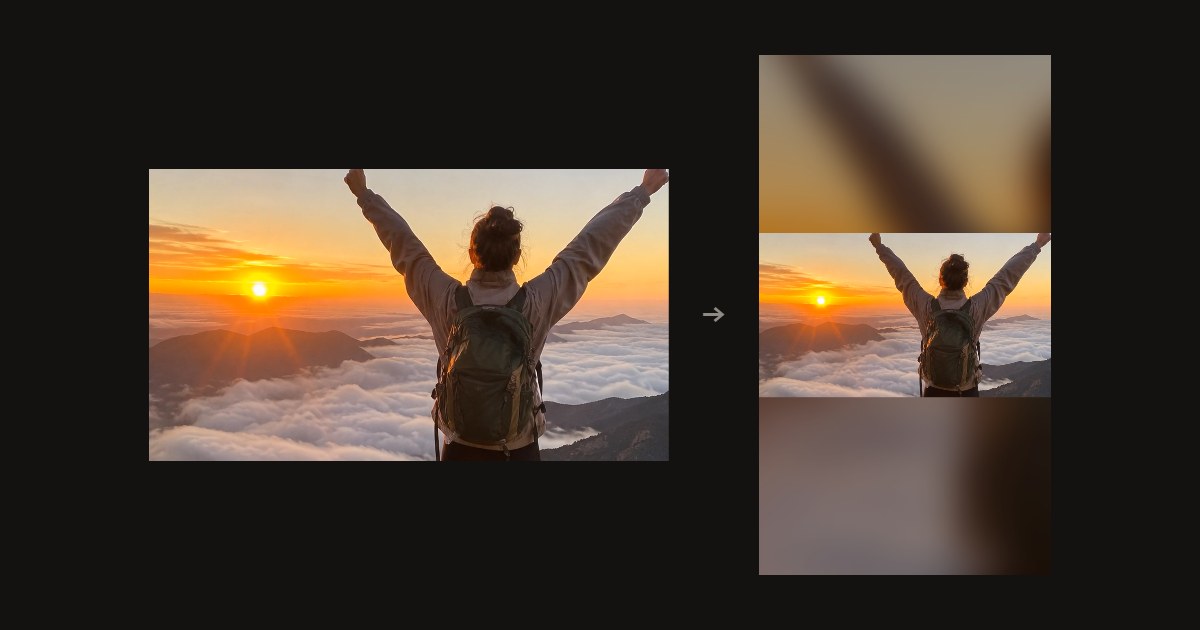
Turn a wide video into 9:16 for TikTok and Reels, a tall one into 16:9 for YouTube, or any shape in between, without cutting anything off: the whole picture over a blurred copy of itself, or with bars. Crop or stretch to fill if you prefer. MP4 with the sound, and nothing uploads.
01 Video
It stays on your device. Nothing uploads.
Made with this tool
How to change a video's aspect ratio
- Drop your video anywhere on the page, or press Try a sample video.
- Pick the new aspect ratio: 9:16, 16:9, 1:1, 4:5, 4:3, 21:9, or Custom.
- Pick the fill: Blurred background or Bars to keep the whole picture, or Crop to fill or Stretch.
- Press Change the aspect ratio, and download the MP4.
Related
Questions
How do I change the aspect ratio of a video?+
Drop the video on this page. Pick the new shape (9:16, 16:9, 1:1, 4:5, 4:3, 21:9, or type your own), then how to fill it: a blurred background, bars, crop to fill, or stretch. The preview shows the result as the video plays. Press Change the aspect ratio and download the MP4.
How do I change the aspect ratio without cropping?+
Choose Blurred background or Bars. Both keep the whole picture: it is scaled to fit inside the new frame, and the space left over is filled, with a blurred, darker copy of the video (the look most TikTok and Reels videos use for wide clips) or with bars of one colour, black by default. Crop to fill is the opposite: the frame is full but the edges are cut.
How do I make a 16:9 video 9:16 for TikTok, Reels or Shorts?+
Drop the wide video and it opens on 9:16 already. With Blurred background, the whole wide picture sits across the middle with the blur above and below. If the subject is in the centre and you would rather fill the screen, choose Crop to fill; to pick exactly which part to keep, use the crop video tool instead.
What does each aspect ratio mean?+
The ratio is width to height. 16:9 is a normal widescreen video (1920 × 1080). 9:16 is the same turned upright, the phone shape (1080 × 1920). 1:1 is square, 4:5 is the tall Instagram feed post, 4:3 is old TV, and 21:9 is cinema widescreen. The new video is 1080p class: its long side is the video's own, kept between 1280 and 1920 pixels.
What is the difference between this and stretching?+
Changing the aspect ratio here keeps the picture in its own proportions unless you choose Stretch. Stretch squashes or pulls the picture to fill the new frame exactly, so people look wider or thinner. That is sometimes the point (the stretched meme), and the video stretcher is built for it.
Is the sound kept, and does it lose quality?+
The sound is kept as it is. The picture is drawn again frame by frame at the new size and written as an H.264 MP4 at 30 frames a second, which looks the same to the eye but is not a bit-for-bit copy. A video over 30 frames a second comes out at 30.
Is my video uploaded?+
No. Your browser reads the video and writes the new one on your own device. No app, no account, no watermark. Tested in Chrome on a computer; Safari on iPhone should work, but long videos take longer there.