Effects · Tool 40 · Transparent PNG · Free · No signup
Snow overlay.
Set the amount, the wind and the flake size, then save a transparent PNG to lay over any picture. It moves too: take a looping GIF, or an MP4 on black for video. No watermark, nothing uploaded.
01 Snow
02 Behind it
Or drop a photo anywhere on the page.
03 Save
The frame on screen now, at full size. Pause on the one you like, or press New pattern.
Made with this tool
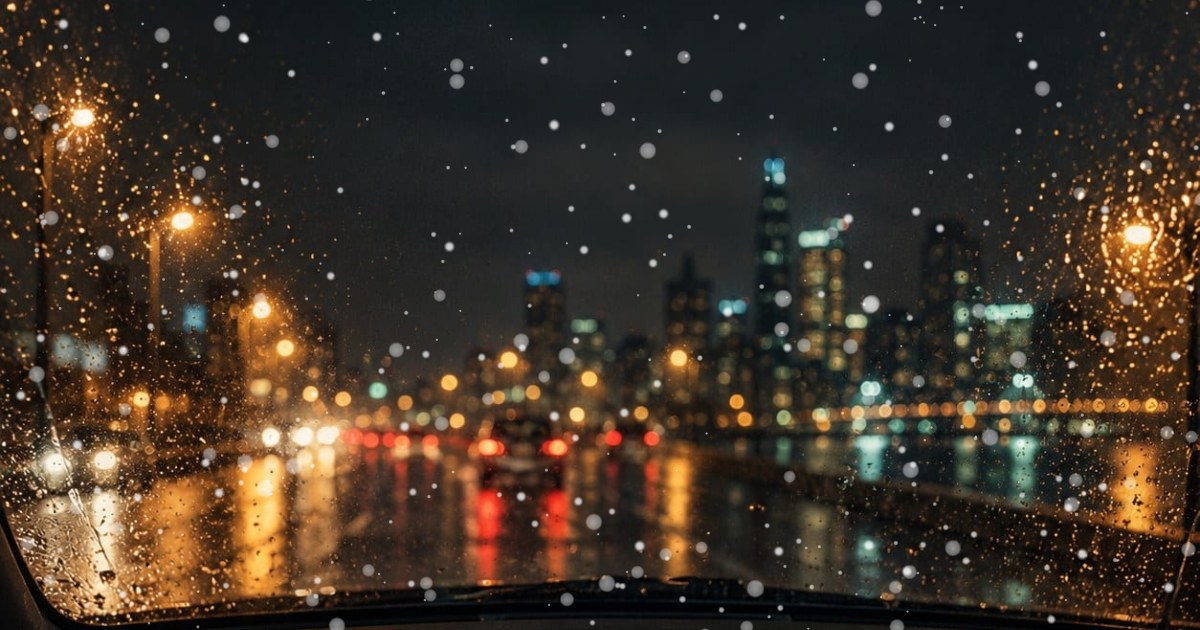
How to make a snow overlay
Most snow overlays online are one fixed picture: too heavy for your photo, or blowing the wrong way. Making your own takes less time than searching for the right one, and the depth is what makes it convincing. Near flakes are large, soft and fast, far ones are small and slow. Keep the amount lower than feels right when there is a face in the picture, so it does not get buried.
- Set Amount, Wind and Size until the fall looks right. Press New pattern for a different scatter.
- Drop a photo on the page if you want to judge it on your own picture, or leave the background transparent.
- Pick the frame on the bar under the preview: 16:9, 9:16 for phones, or 1:1.
- Press Save PNG for a transparent still. For motion, choose GIF, or MP4 video on black, and a loop of 3, 5 or 10 seconds.
- Lay it over your picture. A PNG goes on as a top layer; an MP4 goes on the track above your clip with the blend mode set to Screen.
Related
- Glitch effectMore overlays to lay over a clip: glitch bursts on black or green screen.
- Text animation generatorA moving title to set under the snow.
- Album cover makerA cover for a winter single, ready for a PNG of snow on top.
- Music visualizerPut a song under it: nineteen styles rendered from the music.
Questions
How do I get a snow overlay PNG with a transparent background?+
Leave Behind it on Transparent and press Save PNG. The grey squares in the preview are only there to show the see-through part; they are not in the file. You get a 1920 by 1080, 1080 by 1920 or 1080 by 1080 PNG holding nothing but white flakes with soft edges, ready to lay over a photo in Canva, Photoshop, Procreate or anything else that handles layers.
How do I put moving snow on a video?+
Choose MP4 video and export the loop on black. In your editor, put it on the track above your clip and set its blend mode to Screen, which keeps the bright snow and drops the black. Premiere Pro, After Effects, DaVinci Resolve and CapCut all have a Screen blend. Repeat the clip to cover a longer video: it loops without a jump.
Why is the moving version on black and not transparent?+
MP4 cannot store transparency, and for snow it does not need to, because a Screen blend gives the same result from black. A moving overlay with real alpha needs a MOV file, which takes a server to encode, so it is planned for the paid Pro tier and is not open yet. The PNG is transparent, free.
Can I get a transparent GIF?+
Yes, with one catch. A GIF pixel is either solid or fully clear, with nothing between, so a transparent snow GIF has hard-edged flakes and loses the faintest ones. On black, it keeps the soft edges and can go over a dark picture. GIFs are 480 pixels on the long side at 15 frames a second. The default settings on black came out at about 0.6 MB for a 5 second loop when we measured it; less snow and a shorter loop make it smaller.
What do the settings do?+
Amount runs from a few big drifting flakes to a heavy fall. Wind pushes the snow left or right, with the near flakes moving more than the far ones so it looks deep. Size scales every flake. Soft makes round flakes that blur up close, which reads as real snow; Crystals makes six-armed flakes that turn as they fall, which reads as a graphic or a holiday card. New pattern deals out a different scatter with the same settings.
Can I see it on my own picture?+
Yes. Drop a photo anywhere on the page and the snow falls over it, so you can judge the amount by eye. You can also save the result with the photo in it, as a PNG, a GIF or an MP4. For a video, export the overlay and use a Screen blend as above. Your photo stays on your device and is never uploaded.
Is it free, and can I use it commercially?+
Free, with no account and no watermark, and you can use what you make in anything, including paid work and client videos, with no credit. The snow is generated here, so there is nothing to license. We receive only a count that an export happened, with the look, the format and the length.