Images · Tool 60 · Hair color try on · Free · No upload
Hair color changer.
See your own hair in copper, cherry cola, honey blonde, platinum, gray or pink before you book the appointment. Drag across the photo to compare, then save it, a before and after, or nine colours on one image.
Drag across the photo to compare. Everything happens on this device; the photo is never uploaded.
01 Photo
A sharp photo facing the camera, with all your hair in view, works best.
02 Colour
If colour spills onto your face or the wall, choose Tight. If loose strands stay their old colour, choose Loose.
03 Save
Your photo with the new colour, up to 2048 px on the long side.
Made with this tool
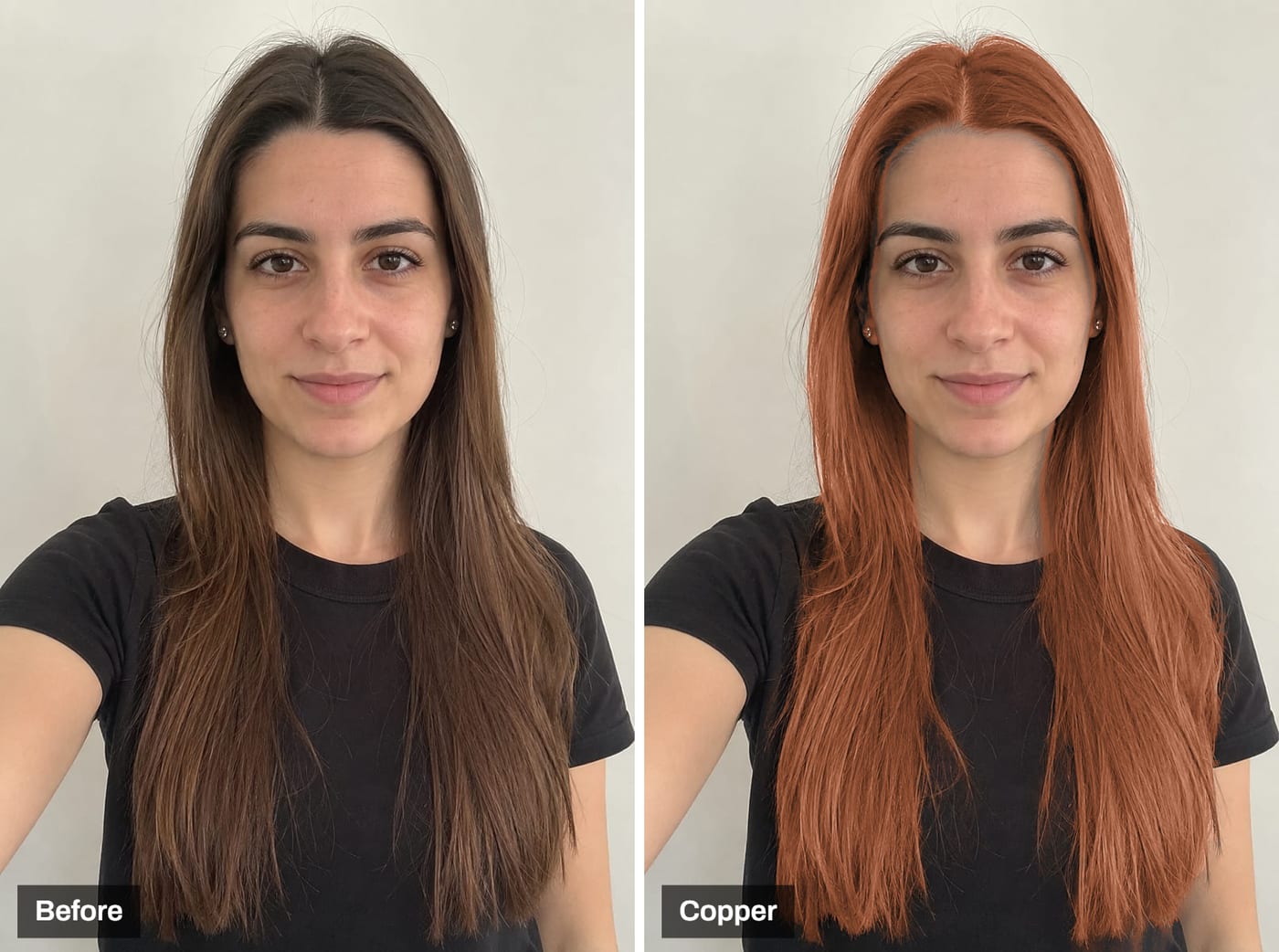
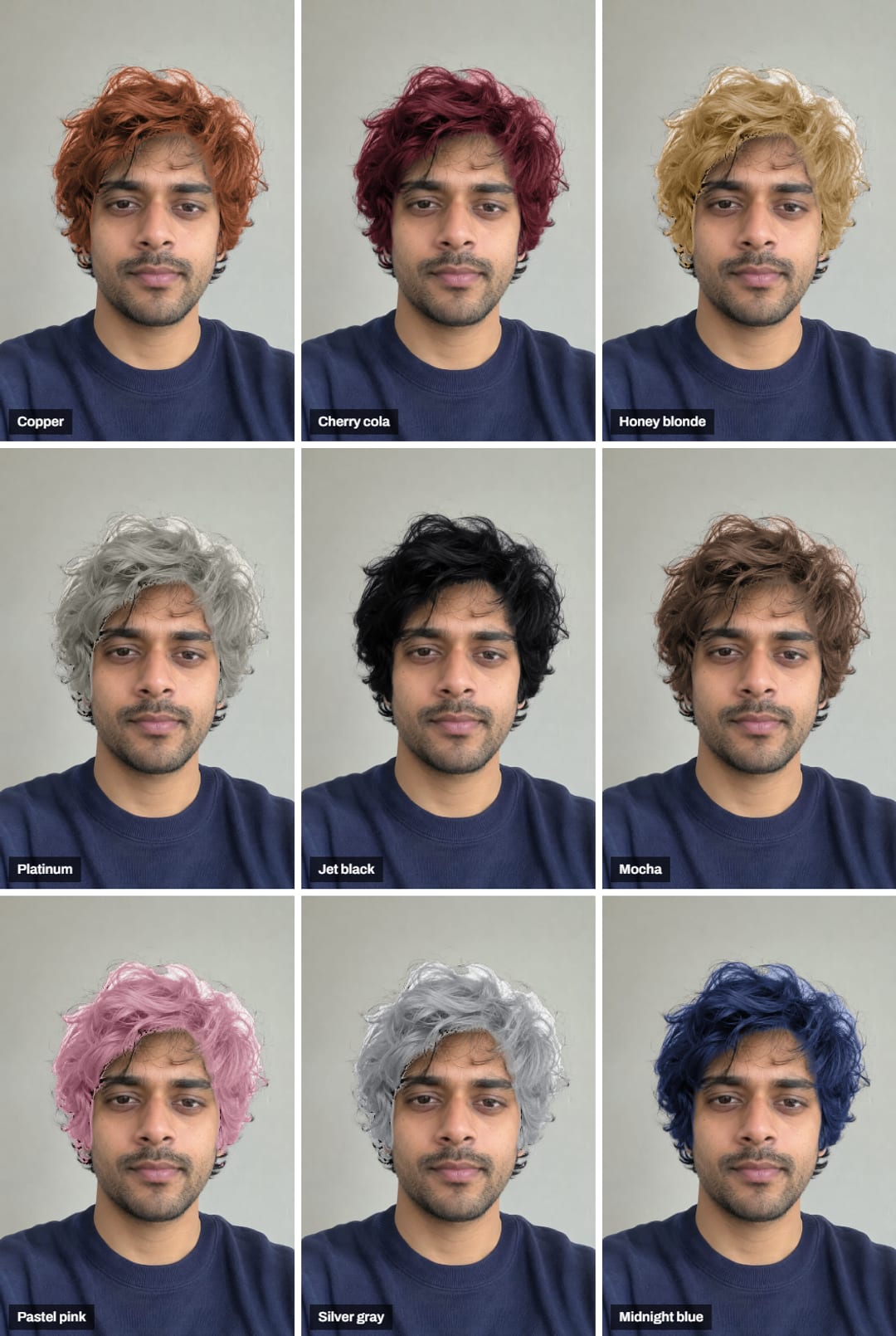
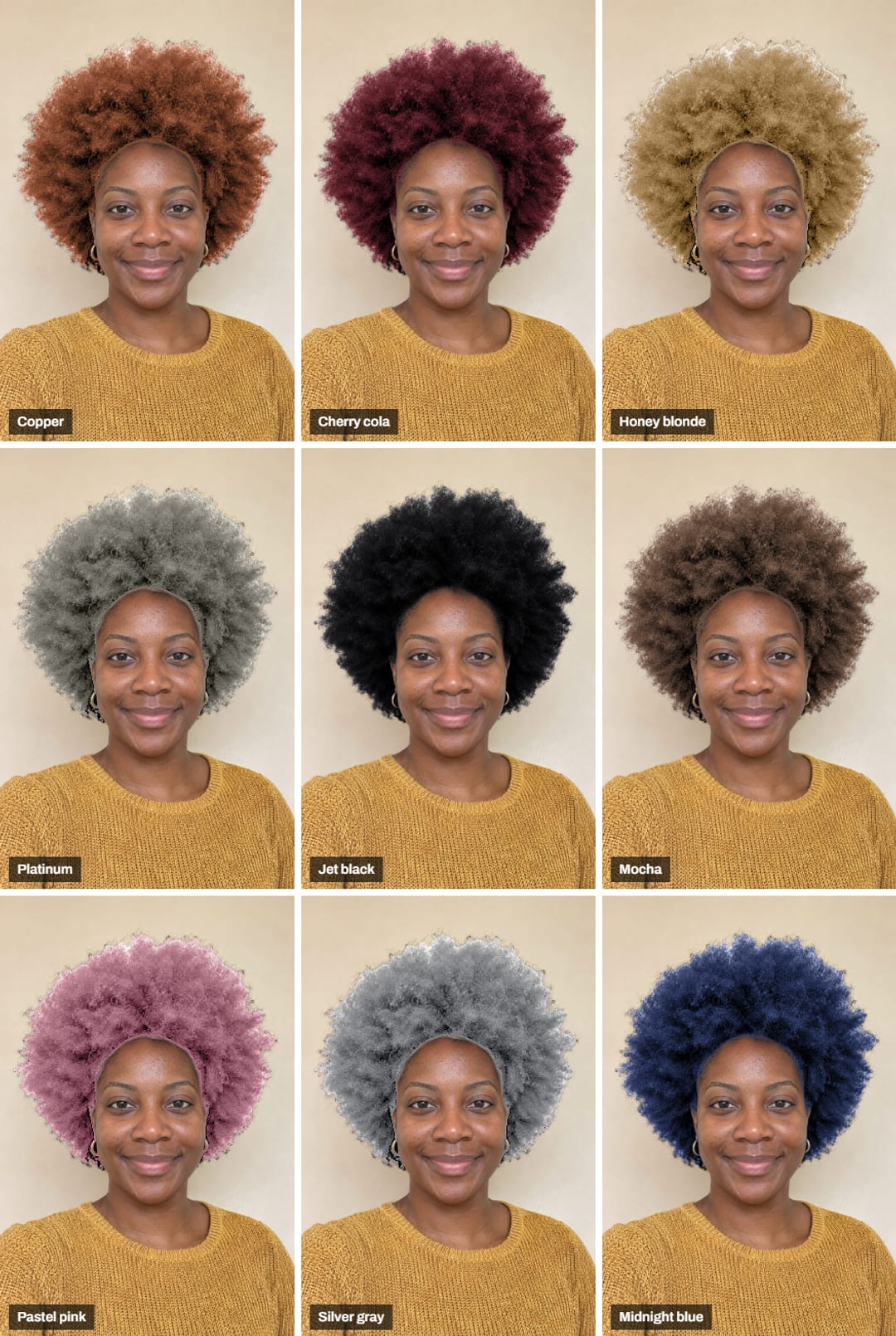
How to try on a hair color
A colour changer is only as good as its edge. The hair finder looks at the photo at a modest size, so fine flyaways against a bright window and hair that touches a dark sweater are where it hesitates; that is what the Edges setting is for. And the brighter the new shade is than your own hair, the more the photo has to invent, which is why reds and browns look most real and platinum on very dark hair looks a little flat.
- Choose a photo of yourself facing the camera, or start with one of the sample photos.
- Wait a moment while the hair is found. The first time, the model takes a few seconds to load.
- Pick a colour, or any colour from the picker. Choose Ombré to keep your roots.
- Drag across the photo to compare the new colour with your own.
- Save the photo, a before and after for your stylist, or nine colours in one grid.
Related
- AI hairstyle changerA new haircut, not just a colour: twelve cuts and colours on your photo.
- AI hairstyle promptsTry haircuts in ChatGPT or Gemini with prompts we tested, results shown.
- Glitch effectYour photo glitched live in eight looks, as a PNG, GIF or video.
- Christmas wallpaperYour new-colour selfie as a phone wallpaper with falling snow.
Questions
How does the hair color changer work?+
Add a photo and a hair-finding model from Google (MediaPipe's hair segmenter) marks which pixels are hair, right in your browser. Then each colour you pick is laid over the hair while keeping its own light and shadow, so strands, shine and dark roots still show. It is a colour change, not a new haircut: the shape of your hair stays exactly as it is.
Is my photo uploaded?+
No. The model is downloaded to your browser once (about 14 MB) and runs there, so your photo stays on your device. We only receive a count that a file was saved, with the colour and the kind of file, never the photo.
Is it AI?+
Partly. Finding the hair uses a small machine-learning model, but nothing is generated: the colour is mixed into your real photo, pixel by pixel, the way a photo editor would. That is why your face, skin and background never change. To see yourself with a different haircut, not just a colour, that needs an image generator; our AI hairstyle prompts guide shows how to do it in ChatGPT or Gemini.
Which colours can I try?+
Twelve shades people are asking for this winter: copper, cherry cola, auburn, honey blonde, platinum, mocha, espresso, jet black, silver gray, pastel pink, plum and midnight blue, plus any colour from the colour picker. Ombré keeps your roots and fades the colour in towards the ends, like a balayage.
Can dark hair go blonde here?+
It can show you, but treat light colours on dark hair as a rough idea. The tool brightens the hair to the new shade, and very dark hair has less detail to brighten, so platinum on black hair looks flatter than it would after a real bleach. Coppers, reds, browns, black and darker fashion colours look most like the real thing.
The colour spills onto my face or misses some hair. What do I do?+
Change Edges. Tight keeps the colour to the hair the model is sure about, which stops it spilling onto skin, eyebrows or a busy background. Loose reaches into wisps and flyaways. A photo facing the camera, in even light, with your hair against a plain background gives the cleanest edge.
Can I make the nine hair colours grid?+
Yes. Choose 9 colours under Save and you get your photo in nine shades on one 3 × 3 image, the format people post to ask which colour suits them.